

Log in to the State Tax Portal
- Visit the official professional tax portal of the respective state where the payment was made.
- Use your PTRC (Professional Tax Registration Certificate) or PTEC (Professional Tax Enrollment Certificate) credentials to log in.
- Ensure that you are accessing the portal of the correct jurisdiction where your registration is active.
- If you’ve forgotten login credentials, use the “Forgot Password” or reset option.
Navigate to the Payment History or Challan Section
- After logging in, go to the section labeled “e-Payment,” “Payment History,” “Transaction Details,” or “Challan Status.”
- Select the correct registration type (PTRC or PTEC) and financial year.
- Use filters like payment date, assessment period, or challan number to search for specific transactions.
- The portal will display a list of payments made under the selected parameters.
Select the Relevant Transaction
- From the list of transactions, locate the payment for which you want to download the acknowledgment.
- Verify details such as tax amount, date of payment, and reference number.
- Click on the payment reference or challan link to access more details.
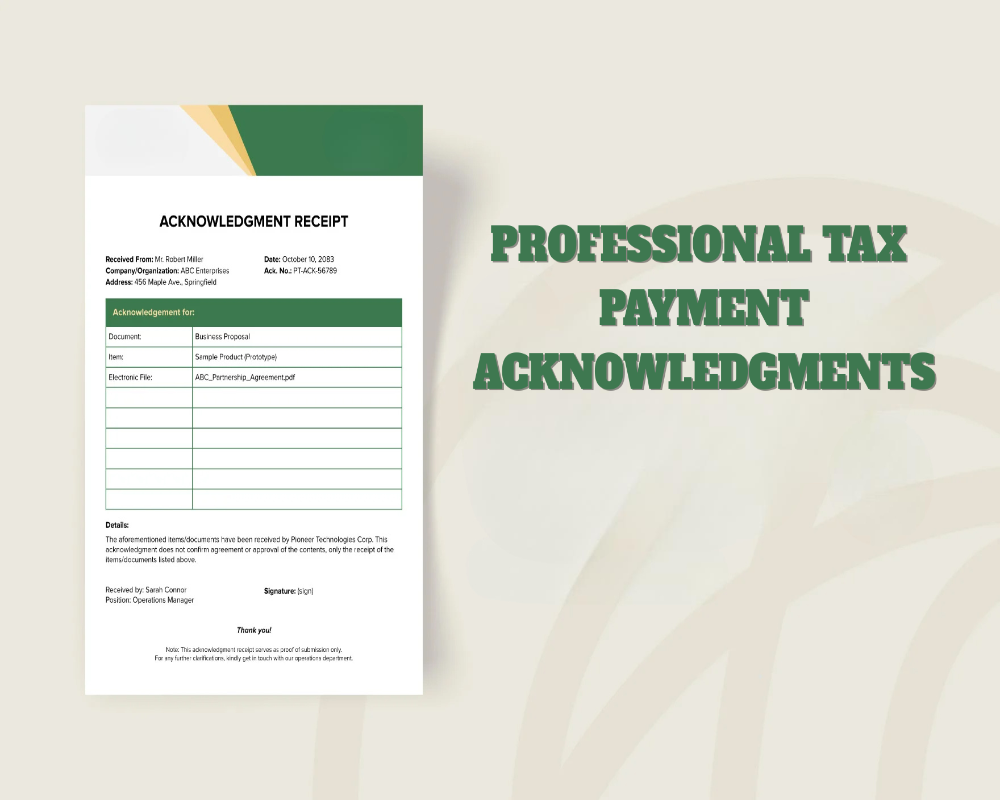
Download or Print the Acknowledgment
- Click on the option to “Download,” “View Receipt,” or “Print Acknowledgment.”
- The acknowledgment is typically generated in PDF format with official stamp, payment ID, and date.
- Save the file for your compliance records or take a physical printout if required.
- If allowed, you can also email the receipt to your registered email address.
Maintain Records for Compliance
- Store payment acknowledgments in a central digital folder for easy access during audits or return filing.
- Reconcile these acknowledgments with your professional tax returns and payroll records.
- Regular downloads and documentation ensure smooth responses during scrutiny or inspections.
- If any acknowledgment is missing or not accessible, contact the state tax support helpdesk with your reference details.
0 Comments