


Access the State’s Professional Tax Portal
- Visit the official commercial tax or professional tax portal of the respective state.
- Select the correct service based on your role:
- PTRC (Professional Tax Registration Certificate) for employers.
- PTEC (Professional Tax Enrollment Certificate) for self-employed individuals.
- PTRC (Professional Tax Registration Certificate) for employers.
- Ensure that you are on the portal for the correct state and jurisdiction where you are registered.
Log In with Valid Credentials
- Enter your login ID, password, and captcha to access your account.
- Use the PTRC or PTEC number issued at the time of registration.
- If you do not have an account, use the registration or sign-up option to create one.
- Some portals also allow guest payment with limited functionality, especially for PTEC holders.
Navigate to the E-Payment Section
- After logging in, go to the “e-Payment,” “Pay Tax,” or “Challan Generation” section.
- Choose the relevant tax type – PTRC for employee deductions or PTEC for self-liability.
- Select the assessment year, tax period, and payment head (e.g., regular tax, penalty, or interest).
- The portal will auto-calculate dues if the system is linked with return filing.
Enter Payment Details and Generate Challan
- Confirm or manually enter the tax amount payable, if not auto-filled.
- Review all details such as registration number, period, and total payable.
- Generate a challan or payment slip before proceeding to payment gateway.
- Note the challan reference number or transaction ID for future tracking.
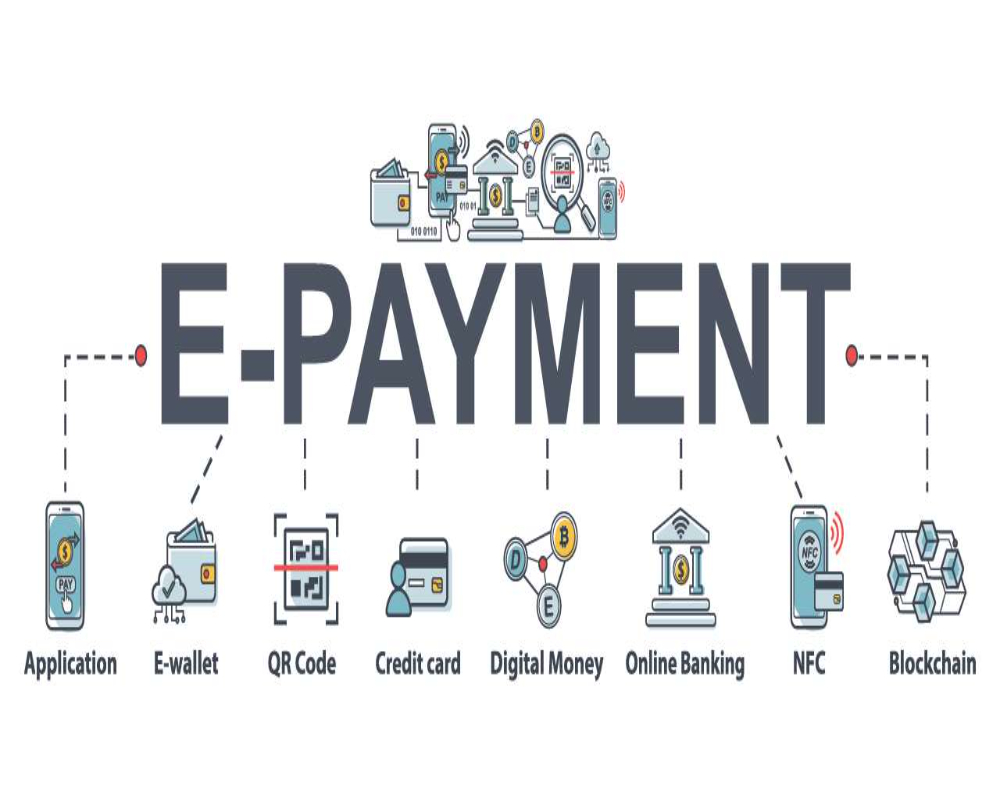
Make Online Payment
- Proceed to the payment gateway to complete the transaction.
- Choose from available payment modes:
- Net banking
- Debit/credit card
- UPI (if enabled)
- NEFT/RTGS reference upload (for offline bank transfers in some states)
- Net banking
- On successful payment, a digital receipt or acknowledgment is generated instantly.
Download and Save Payment Acknowledgment
- Download the PDF receipt or challan acknowledgment immediately after payment.
- The receipt contains important information like payment ID, date, registration number, and period.
- Save a copy for compliance, audits, and return filing.
- You can also access past payment history in the “Payment Ledger” or “Transaction History” section of the portal.
Reconcile and File Return (If Applicable)
- After payment, go to the return filing section to submit the relevant monthly/quarterly/annual return.
- Ensure that the payment challan number is correctly referenced in the return.
- Once filed, a return acknowledgment is also generated and should be saved.
- Timely reconciliation ensures legal compliance and prevents future notices.
0 Comments